
Hi guys,
Last time I described how to create a VM on Azure cloud. This article is a continuation of it.
As the outcome of last article we have a brand new VM on our hand waiting to be configured. So lets do it.
I hope you have a little understanding on web servers, server side scripting. Because today our main focus is to install Apache, PHP and MySql on our VM.
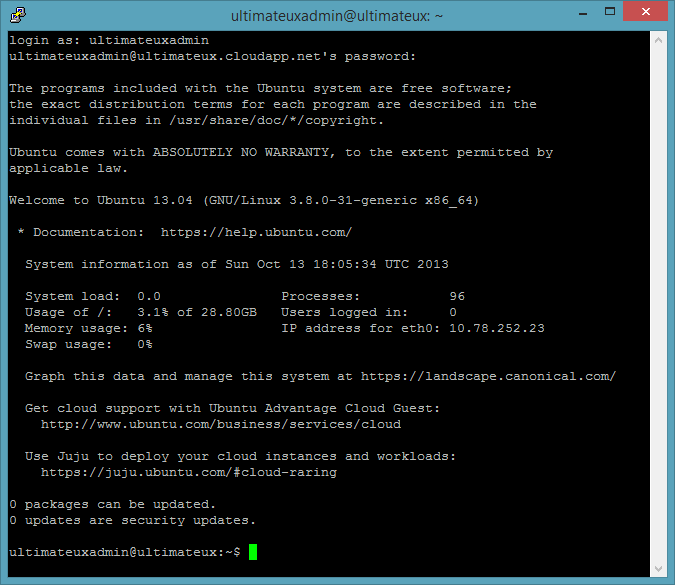
Lets log in to our VM via ssh to handle the installation of above described software.
Assuming you logged in, Lets install Apache web server first.Type the following code and press enter.
sudo apt-get install apache2

After the confirmation, web server will install. Since our web server is finished installing lets try to access it via browser. Type your DNS name on the browser and press enter. You will end up with a similar error message to following.

Now you might be wondering because we just finished installing the web server and still we cant access it via the browser. Yeah it is true that we just installed the web server. But still we did not add a ENDPOINT. By adding a end point we can provide a method of accessing our VM. So far we have create one end point for SSH. Lets go and create another one for http.
Go to azure management portal and go to your VM.
Under Endpoints, click Add

Click "Add standalone Endpoint" and press next.

Under the details, set following values;
Name : HTTP
Protocol : TCP
Public Port : 80
Private Port : 80
(Due to security reasons you can change the port values. But make sure to update the "httpd.conf" of Apache with the relevant values.

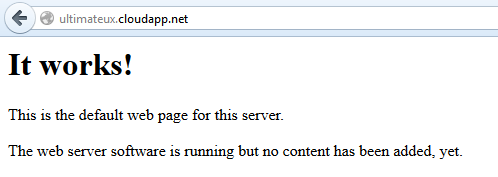
Click on complete and within seconds changes will be applied. Lets try to access our server again via browser. You will see something like this.

That is a green light. It means installing Apache and configuring an endpoint was successful.
Now lets see how to install PHP on the VM. Type the following command on terminal and press enter.
sudo apt-get install php5 libapache2-mod-php5
This will install php5 first and then the php5 module for apache web server secondly. If you do not install the module, you will not be able to parse php snippets in Apache server.

After everything finish we need to restart the Apache server. enter following code
sudo /etc/init.d/apache2 restart

While restarting the apache server, if you see a warning as “Could not reliably determine the server’s fully qualified domain name, using 127.0.1.1 for ServerName”, then you can fix this by creating a file with the Server name. To do this type the following command in the terminal:
sudo nano /etc/apache2/conf.d/fqdn
When the text editor opens, type “ServerName localhost” inside the file and click Save. Then close it. Now restart again with the above code and you will see that the warning message has gone.
To check the php installation lets create a test php file. Enter following command and press enter
sudo nano /var/www/testux.php
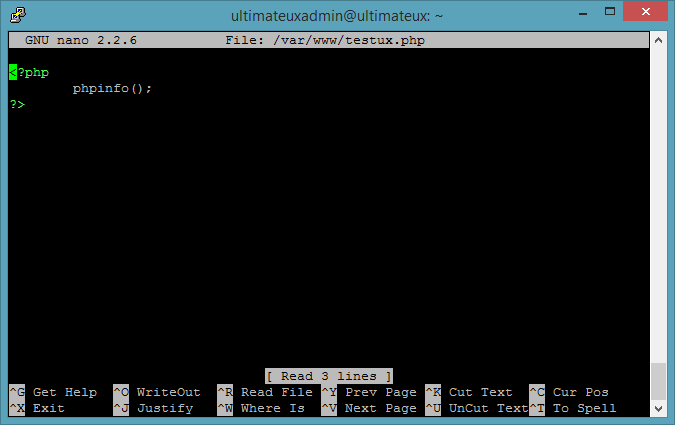
enter following code in it and save and exit.

If a page like following loaded, it means you have successfully installed php.

Article is getting little bit long and will become boring to read. So for this part I'll stop it from here. From the next article I will show you how to install Mysql, phpmyadmin and moving your php app to VM.
See ya.
Last time I described how to create a VM on Azure cloud. This article is a continuation of it.
As the outcome of last article we have a brand new VM on our hand waiting to be configured. So lets do it.
I hope you have a little understanding on web servers, server side scripting. Because today our main focus is to install Apache, PHP and MySql on our VM.
Lets log in to our VM via ssh to handle the installation of above described software.
Assuming you logged in, Lets install Apache web server first.Type the following code and press enter.
sudo apt-get install apache2

After the confirmation, web server will install. Since our web server is finished installing lets try to access it via browser. Type your DNS name on the browser and press enter. You will end up with a similar error message to following.

Now you might be wondering because we just finished installing the web server and still we cant access it via the browser. Yeah it is true that we just installed the web server. But still we did not add a ENDPOINT. By adding a end point we can provide a method of accessing our VM. So far we have create one end point for SSH. Lets go and create another one for http.
Go to azure management portal and go to your VM.
Under Endpoints, click Add

Click "Add standalone Endpoint" and press next.

Under the details, set following values;
Name : HTTP
Protocol : TCP
Public Port : 80
Private Port : 80
(Due to security reasons you can change the port values. But make sure to update the "httpd.conf" of Apache with the relevant values.

Click on complete and within seconds changes will be applied. Lets try to access our server again via browser. You will see something like this.
That is a green light. It means installing Apache and configuring an endpoint was successful.
Now lets see how to install PHP on the VM. Type the following command on terminal and press enter.
sudo apt-get install php5 libapache2-mod-php5
This will install php5 first and then the php5 module for apache web server secondly. If you do not install the module, you will not be able to parse php snippets in Apache server.

After everything finish we need to restart the Apache server. enter following code
sudo /etc/init.d/apache2 restart

While restarting the apache server, if you see a warning as “Could not reliably determine the server’s fully qualified domain name, using 127.0.1.1 for ServerName”, then you can fix this by creating a file with the Server name. To do this type the following command in the terminal:
sudo nano /etc/apache2/conf.d/fqdn
When the text editor opens, type “ServerName localhost” inside the file and click Save. Then close it. Now restart again with the above code and you will see that the warning message has gone.
To check the php installation lets create a test php file. Enter following command and press enter
sudo nano /var/www/testux.php
enter following code in it and save and exit.
If a page like following loaded, it means you have successfully installed php.

Article is getting little bit long and will become boring to read. So for this part I'll stop it from here. From the next article I will show you how to install Mysql, phpmyadmin and moving your php app to VM.
See ya.




 Posts


